
AirDrop Alternatives: Share Text and Files Between Any Device
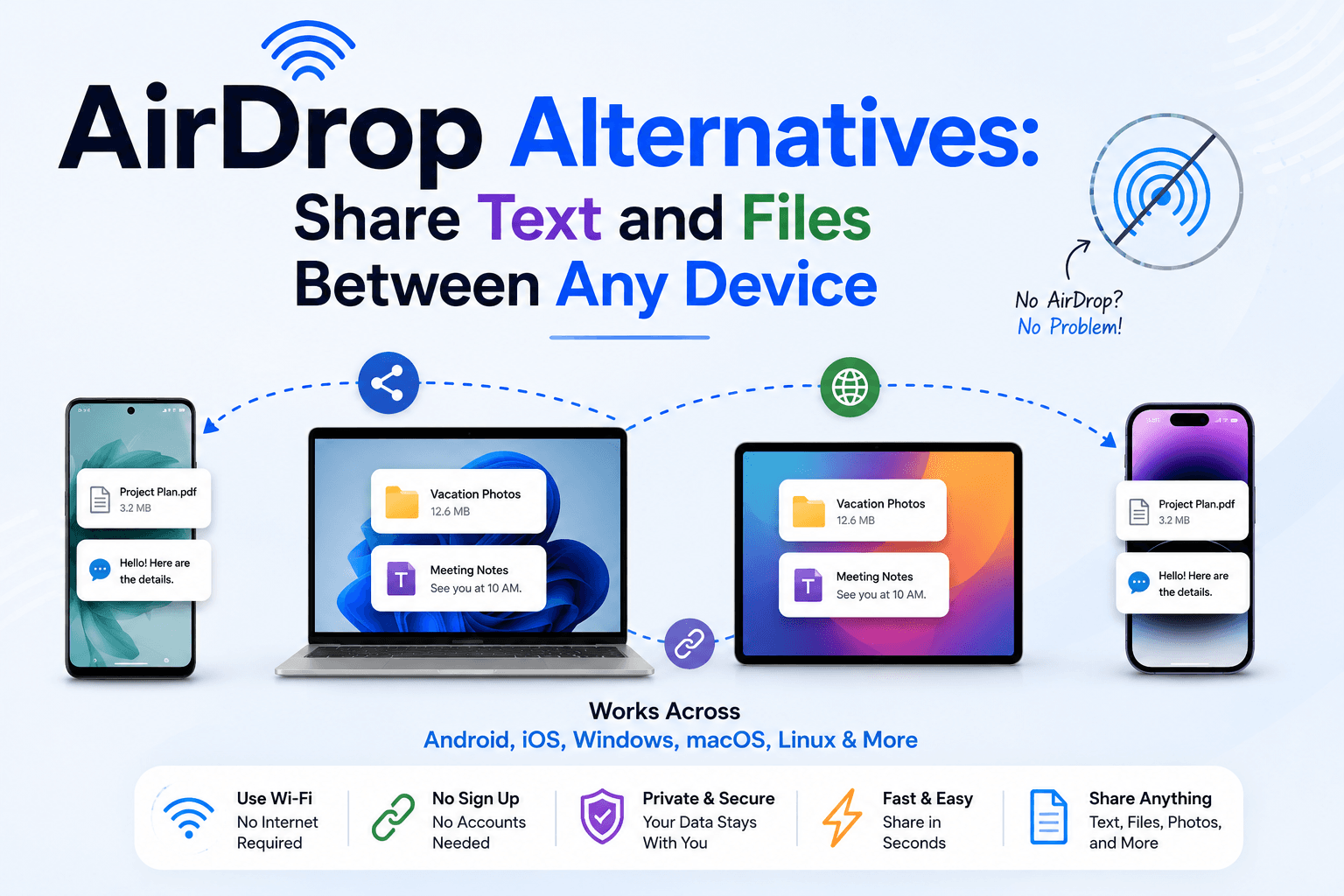
AirDrop is fast, polished, and almost magical — right up until someone in the room is holding an Android phone or sitting at a Windows laptop. The moment you step outside Apple's ecosystem, that magic disappears and you are back to emailing files to yourself or fumbling with a USB cable. If your day involves more than one brand of hardware, you need a cross-platform alternative. This guide covers the most reliable ways to share text and files between any device, and how to choose between them.
Why you need an AirDrop alternative
AirDrop only works between Apple devices, using a combination of Bluetooth and peer-to-peer Wi-Fi. It cannot send to an Android phone. It cannot send to a Windows PC. And even within the Apple world it occasionally refuses to find a nearby Mac for no reason you can diagnose, leaving you toggling Wi-Fi and praying.
None of that is a knock on AirDrop's design — it was built to be an Apple-to-Apple convenience, and at that job it excels. The problem is that real life is rarely all one brand. You send a photo to a friend on Android, hand a document to a colleague on Windows, or move a link from your iPhone to a work laptop you cannot sign into. For all of those, you need something that does not care which logo is on the device.
1. Browser-based sharing rooms
The quickest cross-platform option is a shared browser room. Tools like CopyPaster place every device on the same network into one space automatically: open the site on your iPhone and your Android tablet, and text or a small file dropped on one appears on the other in real time. There is no app to download, no pairing handshake, and no account to create.
- Best for: quick text, links, and small files between mixed devices.
- Setup: none — just open the same site on both devices and confirm the room key matches.
- Limitation: built for fast, temporary handoffs rather than archiving large media.
This is the closest thing to "AirDrop for everyone," precisely because it ignores the operating system entirely and relies only on a browser, which every device already has.
2. Nearby Share / Quick Share (Android and Windows)
Google's Quick Share — formerly Nearby Share — is essentially AirDrop for the Android world, and it now works with Windows through a desktop app. It is fast and well integrated if your devices are Android and Windows. But, like AirDrop in reverse, it leaves iPhone users standing outside, so it only solves the problem if Apple hardware is not in the picture.
3. Cloud drive links
Dropbox, Google Drive, and OneDrive all work on every platform, which makes them dependable for large files. The cost is friction: you upload, wait for the transfer, generate a shareable link, and then send that link through some other channel. For a 2 GB video that is a reasonable trade. For a single sentence of text or one screenshot, it is far more work than the task deserves.
4. Messaging yourself or a contact
WhatsApp, Telegram, and Signal all have a "message to self" or a quick chat you can use as a transfer pipe, and they are genuinely cross-platform. The downsides are familiar: images get compressed, your chat history fills with clutter, and private text passes through a third-party server. It is a serviceable fallback, not a workflow you would choose on purpose.
Which one should you pick?
The right answer depends almost entirely on what you are moving:
- Text, links, or a small file across mixed devices: a browser room wins on sheer simplicity.
- Large media you already keep in the cloud: a drive link is the natural fit.
- Android-to-Windows only: Quick Share is fast and native.
- Nothing else available: a self-message in a chat app will do in a pinch.
For a fast, mixed-device handoff of text or a small file, a browser room beats every other option on setup time, because the setup time is zero. Reserve the heavier tools for the jobs that actually need them.
A note on privacy
Whatever you choose, match the tool to the sensitivity of the content. Browser rooms based on a shared public IP are ideal for non-confidential transfers — a link, a public image, a throwaway note. For anything private, use an end-to-end encrypted note that is scrambled in your browser before it leaves the device, or an authenticated service you control, and remove the content once it has arrived. A few seconds of cleanup is cheaper than wondering later who else was on that network.
The takeaway
AirDrop earned its reputation, but it was never meant to be universal, and stretching it to cover Android and Windows is a fight you will lose. The fix is not a better Apple feature; it is a tool that ignores the operating system altogether. For most everyday transfers, a browser-based sharing room gets text and small files from any device to any other device in seconds — no brand loyalty required. Keep a cloud drive on hand for the big files, and you will have every cross-platform handoff covered.
Frequently Asked Questions
QWhat is the best AirDrop alternative for Android and iPhone together?
A browser-based sharing room is the simplest, because it works on any device with a browser regardless of brand — no pairing or account needed.
QDoes AirDrop work with Windows?
No. AirDrop is exclusive to Apple devices. To include a Windows PC, use a browser room, Quick Share, or a cloud drive link.
QCan I send files and not just text?
Yes. Browser rooms handle small file drops in addition to text, while cloud drive links are better suited to large media.
Related articles

How to Copy Paste on Linux (Complete Guide)
Linux quietly runs two separate clipboards at once. Understanding both explains most copy-paste confusion, plus how to sync with other operating systems.
Read article
How to Transfer Contacts Between Phones Without an App
Moving to a new phone does not require a third-party transfer app. Here is how to move contacts using built-in sync or a quick vCard file export.
Read article
How to Send a Voice Memo From Phone to Computer
Voice memos are locked inside their app until you export them. Here is how to move a recording from your phone to your computer quickly once exported.
Read article