
How to Copy Paste on Linux (Complete Guide)

Linux copy-paste has one genuinely confusing quirk that trips up almost everyone coming from Windows or Mac: there are actually two separate clipboards running at once on most Linux desktop environments, and knowing which one you are using explains most of the "why didn't that paste" moments.
The basics
- Copy: Ctrl + C in most graphical applications.
- Paste: Ctrl + V in most graphical applications.
- In terminal applications: Ctrl + Shift + C to copy and Ctrl + Shift + V to paste, since plain Ctrl + C is reserved for canceling a running command in most terminals.
The two-clipboard system explained
Most Linux desktop environments (GNOME, KDE, XFCE, and others) maintain two independent clipboards:
- The standard clipboard — filled explicitly using Ctrl + C or an app's Copy command, pasted with Ctrl + V. This works the way you would expect from Windows or Mac.
- The selection clipboard (or "primary selection") — automatically filled any time you highlight text, with no explicit copy step needed. Paste this one with a middle-click, wherever your cursor is.
These are genuinely separate — copying something with Ctrl + C does not affect what a middle-click will paste, and highlighting text for a middle-click paste does not touch what Ctrl + V will produce. Once this clicks, a lot of Linux clipboard confusion disappears.
Common Linux clipboard issues
"Ctrl + V pastes something old"
Check whether you actually re-copied with Ctrl + C, or whether you only highlighted new text — highlighting alone only updates the selection clipboard, not the standard one.
Clipboard clears when an application closes
Some lightweight clipboard implementations, particularly in minimal window managers, only hold clipboard content while the source application stays open. A clipboard manager utility (many desktop environments include one, or you can install a lightweight one like CopyQ) keeps content available after the source app closes.
Copying between a Linux machine and a different operating system
Linux does not share a clipboard with Windows or macOS automatically over a network. A browser-based tool like CopyPaster works across any combination — open it in a browser on the Linux machine and on the other device, both over the same Wi-Fi, and content pasted on one appears on the other regardless of operating system.
Tip: if you are running Linux inside a virtual machine on a Windows or Mac host, most VM software (VirtualBox, VMware) has its own separate clipboard-sharing setting under guest additions or VM tools — that is a different mechanism from either of the two described above, and needs to be enabled separately in the VM's settings.
The bottom line
Linux copy-paste works like any other system once you know two clipboards exist side by side rather than one — the standard Ctrl+C/Ctrl+V clipboard and the selection-based middle-click clipboard are simply two different tools doing two different jobs.
Frequently Asked Questions
QWhy does Linux have two clipboards?
Most Linux desktop environments maintain a standard clipboard filled by Ctrl+C, and a separate selection clipboard automatically filled by highlighting text, pasted with a middle-click.
QHow do I copy paste in a Linux terminal?
Use Ctrl + Shift + C to copy and Ctrl + Shift + V to paste, since plain Ctrl + C is reserved for canceling a running command in most terminal applications.
QHow do I copy paste between Linux and Windows?
Linux does not share a clipboard with Windows automatically over a network. Use a browser-based tool like CopyPaster on both devices over the same Wi-Fi instead.
Related articles

How to Transfer Contacts Between Phones Without an App
Moving to a new phone does not require a third-party transfer app. Here is how to move contacts using built-in sync or a quick vCard file export.
Read article
How to Send a Voice Memo From Phone to Computer
Voice memos are locked inside their app until you export them. Here is how to move a recording from your phone to your computer quickly once exported.
Read article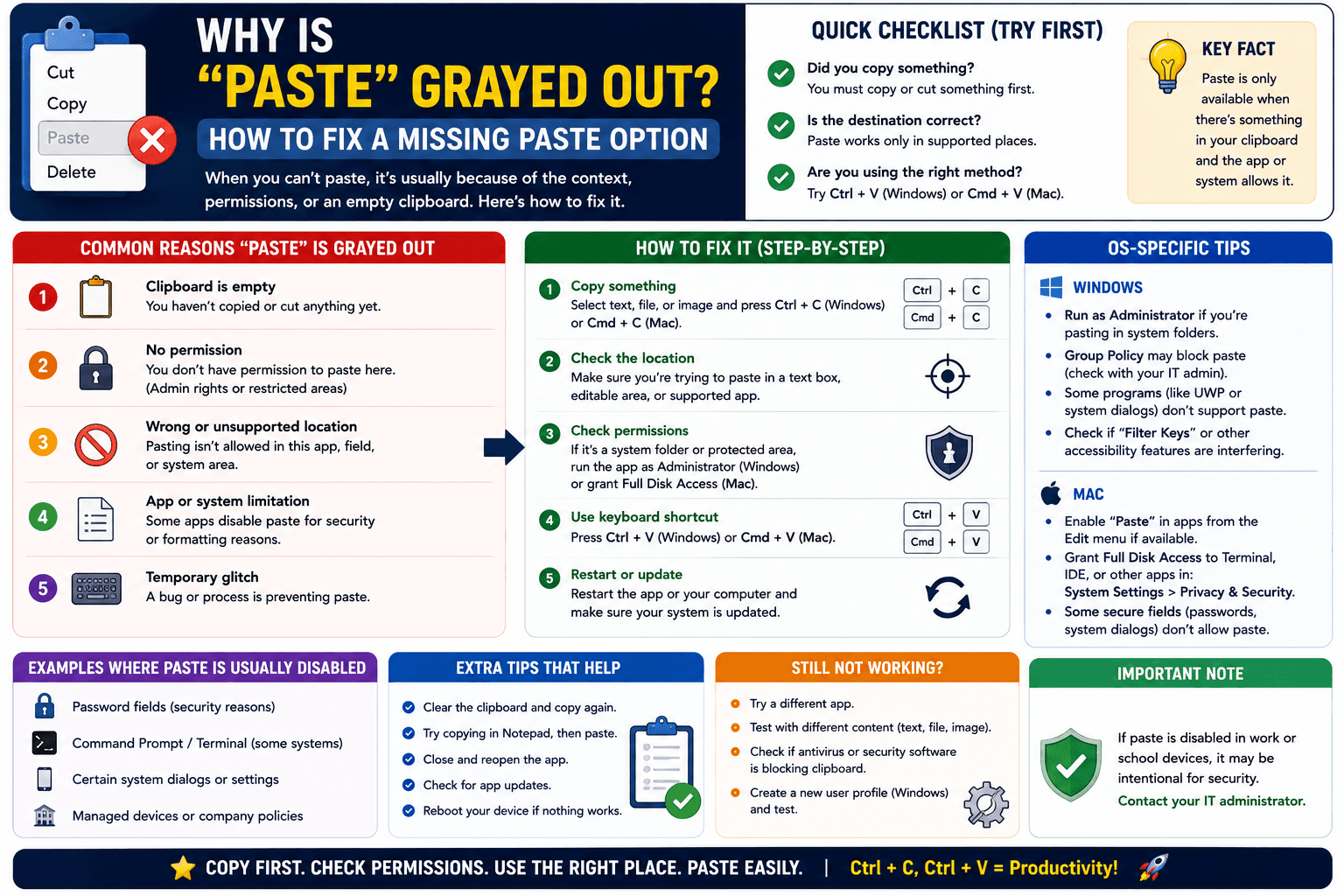
Why Is "Paste" Grayed Out? How to Fix a Missing Paste Option
"Paste" grayed out with no error message? Here are the actual causes and the fastest way to check which one applies to you.
Read article