
How to Automatically Sync Your Clipboard Across All Devices
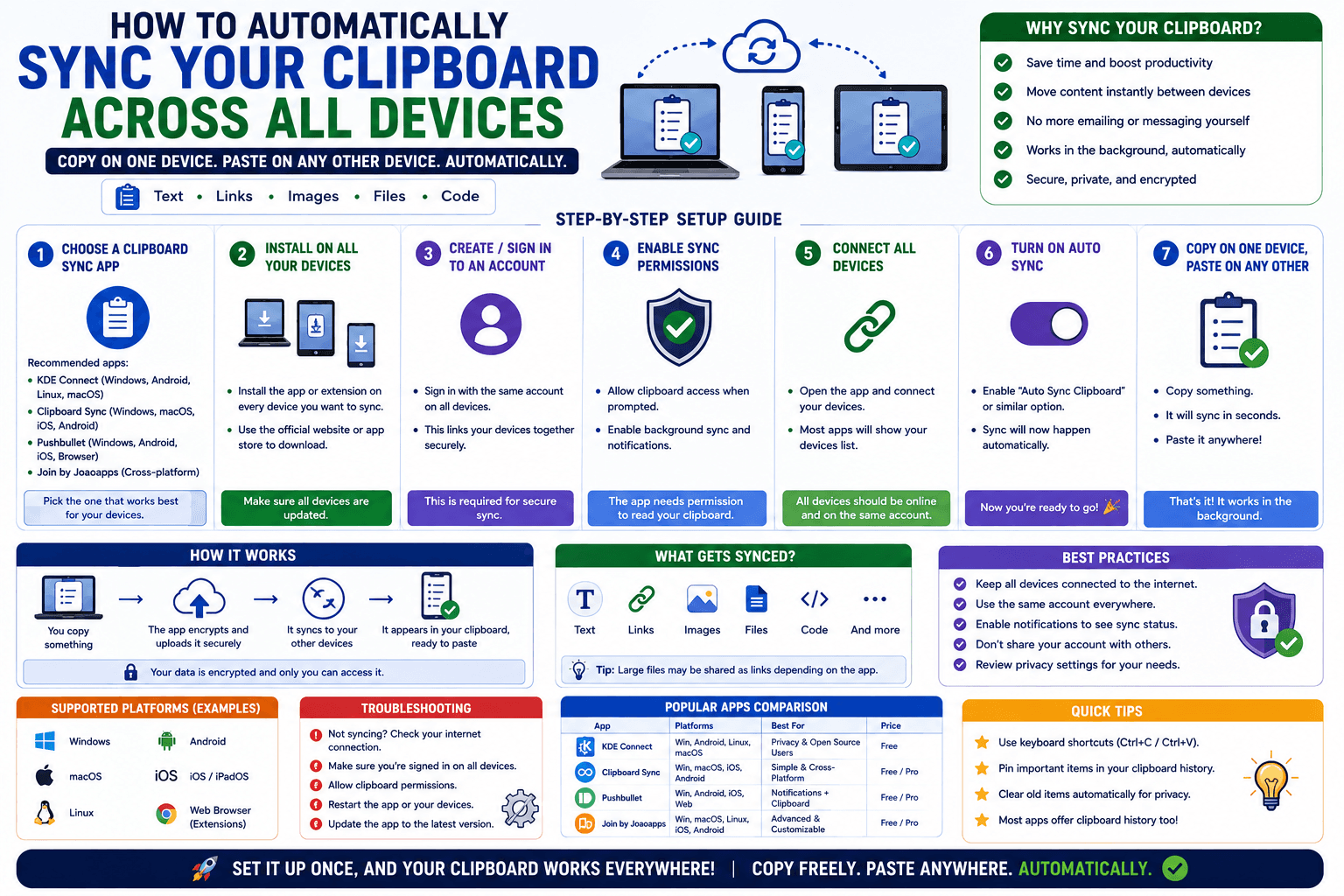
Every method of moving text between devices covered so far on this blog shares one thing in common: you have to open a tab, paste manually, and do it again next time. CopyPaster's Chrome extension removes that step entirely — copy something on any page, on any device signed into your account, and it is simply there to paste on the others. No room to open, no code to match, no tab to keep alive.
How this is different from the browser-room approach
The text and file rooms covered elsewhere on this site work by matching devices on the same Wi-Fi network — fast, no account needed, but scoped to that one session and that one network. The Chrome extension works differently: it is tied to your CopyPaster account, not your network, so it works across Wi-Fi networks, across days, and stays running quietly in the background instead of needing an open tab.
What it actually does
- Copy any text on any webpage, on any device where you are signed into your CopyPaster account through the extension.
- That copy is saved to your account and appears on every other signed-in device almost immediately.
- With auto-copy turned on, it writes straight into your other device's clipboard in the background — you just press paste.
- With auto-copy off, incoming clips show up in the extension's popup as a click-to-copy list instead.
Getting started
- Install the CopyPaster Chrome extension.
- Open the extension popup and sign in with an email code (no password to set or remember).
- Repeat on your other device — sign in with the same account.
- Copy something on either device, and it becomes available on the other automatically.
Why this matters for everyday use
The room-based tools on this site are ideal for a one-off, right-now transfer. The extension is built for the opposite pattern: the small, constant stream of things you copy throughout a normal day — a link you want to read later on your other computer, a snippet for a document you are writing across two machines, a password reset code that arrived on your phone but is needed on your desktop. None of that is worth opening a dedicated room for every single time, which is exactly the gap the extension fills.
Tip: if you only need a one-time transfer of a file or a longer document, the room-based tools are still the faster choice — the extension is built for ongoing, everyday text syncing rather than large one-off transfers.
A note on how it stays up to date
While the extension popup is open, updates arrive live. If it has been closed, it catches up the moment you reopen it, and a background check every minute or so keeps things from falling too far behind even if the browser suspended the extension in the meantime.
The bottom line
Not every copy-paste moment deserves a dedicated room and an open tab — some of them just need to quietly work in the background, the way clipboard sync should. That is exactly the gap CopyPaster's Chrome extension is built to close.
Frequently Asked Questions
QHow does automatic clipboard sync work across devices?
Install the CopyPaster Chrome extension and sign in with the same account on each device. Anything copied on one device is saved to your account and becomes available on the others automatically.
QDoes this work across different Wi-Fi networks?
Yes, unlike the room-based tools that require the same network, the extension is tied to your account and works regardless of which network each device is on.
QWhat does auto-copy do?
With auto-copy turned on, clips from your other signed-in devices are written directly into your device's clipboard in the background, so a normal paste shortcut is all you need.
Related articles

How to Copy Paste on Linux (Complete Guide)
Linux quietly runs two separate clipboards at once. Understanding both explains most copy-paste confusion, plus how to sync with other operating systems.
Read article
How to Transfer Contacts Between Phones Without an App
Moving to a new phone does not require a third-party transfer app. Here is how to move contacts using built-in sync or a quick vCard file export.
Read article
How to Send a Voice Memo From Phone to Computer
Voice memos are locked inside their app until you export them. Here is how to move a recording from your phone to your computer quickly once exported.
Read article