
Chrome Extension for Clipboard Sync: Complete Setup Guide
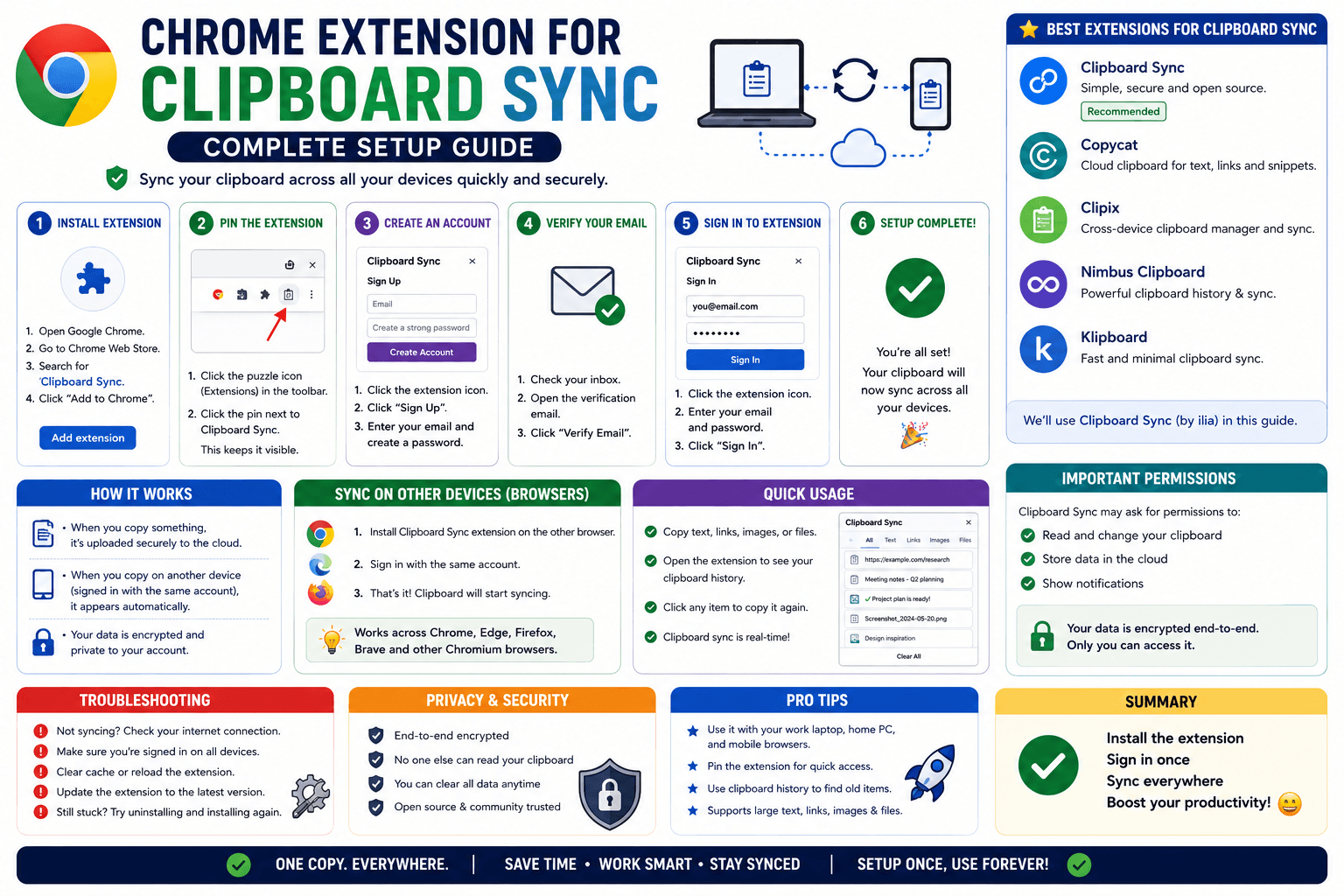
Setting up account-based clipboard sync takes about two minutes, but a few of the settings are easy to miss the first time through. Here is the complete setup walkthrough for CopyPaster's Chrome extension, including what auto-copy actually does and how to tell it is working correctly.
Before you start
You will need Chrome (or another Chromium-based browser) on each device you want synced, and an email address to sign in with — there is no password to create, just a one-time code sent to your inbox each time you sign in on a new device.
Step-by-step setup
- Install the extension on your first device's Chrome browser.
- Click the extension icon to open the popup, and enter your email address.
- Check your inbox for a one-time sign-in code, and enter it in the popup.
- Repeat steps 1 through 3 on your second device, signing in with the same email address.
- Copy some text on either device to test the connection.
- Check the other device's popup — the copied text should appear there within a few seconds.
Turning on auto-copy
By default, incoming clips show up as a click-to-copy list in the popup. If you would rather they land directly in your clipboard without an extra click, open the popup and toggle on auto-copy. With this enabled, a background connection stays open, and any clip from your other signed-in devices is written straight into your clipboard — a normal paste shortcut is all that's needed after that.
Confirming it is actually working
- Copy a short, distinct test phrase (like the current date) on one device.
- Check the other device within a few seconds — if auto-copy is on, try pasting directly; if it is off, check the popup for the new entry.
- If nothing appears, confirm both devices are signed into the same account by checking the email shown in each popup.
What happens when the browser is closed or idle
Chrome extensions built this way are occasionally suspended by the browser when idle, which can pause the background sync temporarily. A periodic check runs roughly every minute to catch back up automatically, and opening the popup manually always triggers an immediate refresh regardless of how long it has been idle.
Tip: if a clip does not seem to have synced and it has been a while since you last opened the popup on the receiving device, simply opening it manually usually catches it up immediately rather than needing to wait for the periodic background check.
Signing out or switching accounts
Open the extension popup and use the sign-out option to disconnect that device from your account — useful if you are moving to a different account or handing the device off to someone else.
The bottom line
The entire setup is: install, sign in with an email code, repeat on the second device, and optionally turn on auto-copy. Once that's done, clipboard sync runs quietly in the background without needing to be reconfigured again.
Frequently Asked Questions
QHow do I sign into the CopyPaster Chrome extension?
Click the extension icon, enter your email address, and enter the one-time code sent to your inbox. No password is needed.
QHow do I confirm clipboard sync is working?
Copy a short test phrase on one device and check the other device within a few seconds, either by pasting directly if auto-copy is on, or checking the popup list if it is off.
QWhat happens if the extension has been idle for a while?
A periodic background check runs roughly every minute to catch up automatically, and opening the popup manually always triggers an immediate refresh.
Related articles

How to Copy Paste on Linux (Complete Guide)
Linux quietly runs two separate clipboards at once. Understanding both explains most copy-paste confusion, plus how to sync with other operating systems.
Read article
How to Transfer Contacts Between Phones Without an App
Moving to a new phone does not require a third-party transfer app. Here is how to move contacts using built-in sync or a quick vCard file export.
Read article
How to Send a Voice Memo From Phone to Computer
Voice memos are locked inside their app until you export them. Here is how to move a recording from your phone to your computer quickly once exported.
Read article