
How to Copy and Paste Between Your Phone and Computer
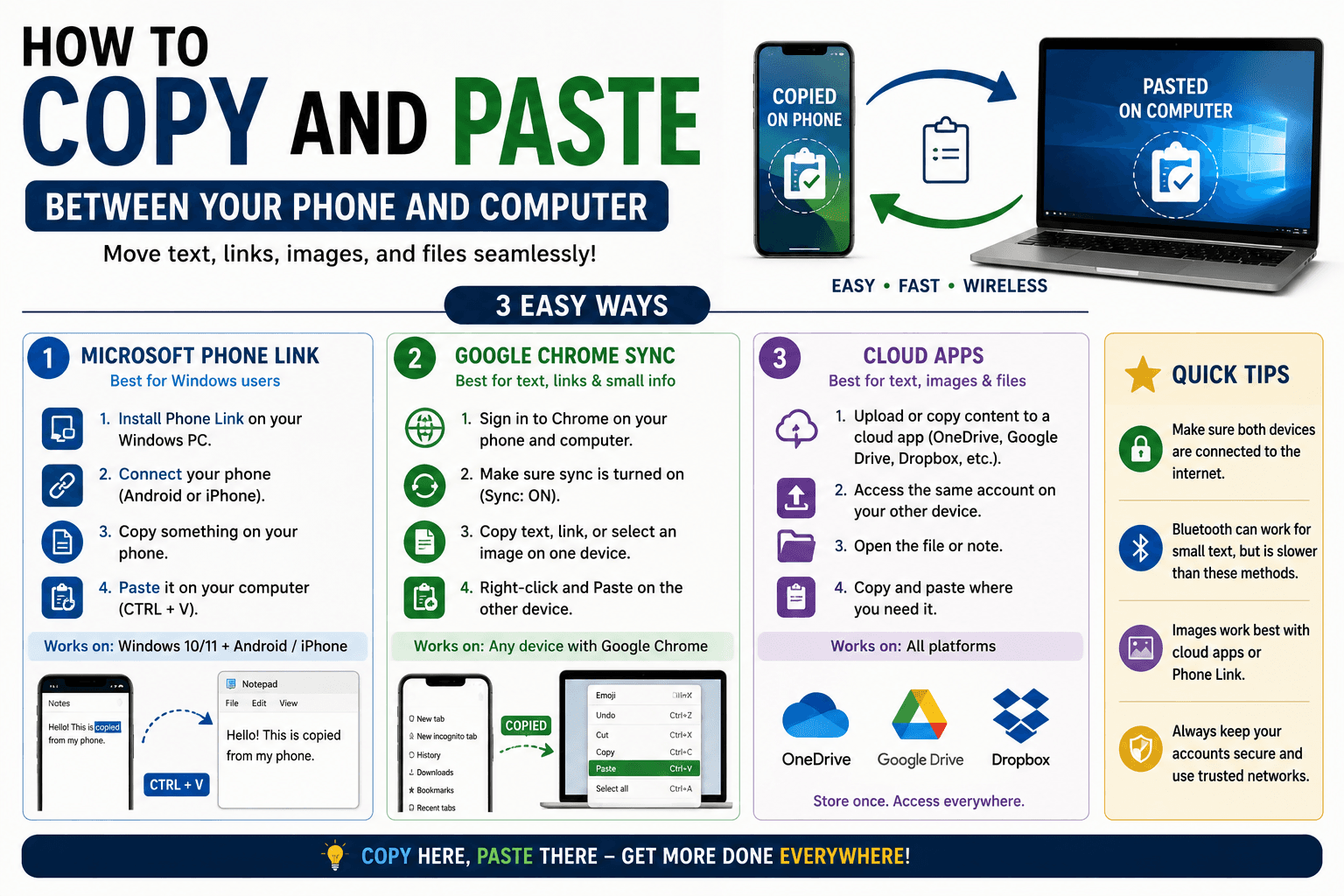
It sounds like it should be the simplest thing in the world — copy something on your phone, paste it on your computer. But phones and computers do not share a clipboard by default, and unless you have set something up in advance, that copied text has nowhere to go once you switch devices. Here are the actual ways to copy and paste between your phone and your computer, from the built-in options to the fastest cross-platform method.
Why your clipboard does not just "carry over"
A clipboard is tied to a single operating system's memory. What you copy on your iPhone lives inside iOS; what you copy on your Windows laptop lives inside Windows. They are separate systems that were never designed to talk to each other automatically — any cross-device copy-paste you have used before was made possible by a specific feature or tool bridging that gap, not by copy-paste itself.
Option 1: Built-in ecosystem tools (if your devices match)
If your phone and computer are made by the same company, there is often a built-in bridge:
- Apple devices: Universal Clipboard lets you copy on an iPhone and paste on a Mac, as long as both are signed into the same Apple ID with Wi-Fi, Bluetooth, and Handoff enabled.
- Samsung + Windows: Samsung's "Link to Windows" / Phone Link integration offers a similar bridge for compatible devices.
- Chrome on Android + Chrome on desktop: signing into the same Google account can sync recent copies through Chrome, though it is slower and less reliable than a dedicated tool.
These work well when your devices match, and not at all when they do not — an iPhone and a Windows laptop, or an Android phone and a Mac, get no built-in bridge at all.
Option 2: A browser-based copy paste tool (works on any combination)
For mismatched devices — or when you just want something faster and platform-independent — a browser tool like CopyPaster works regardless of what phone or computer you are using. Every device connected to the same Wi-Fi joins the same temporary room automatically.
Step by step
- Connect your phone and computer to the same Wi-Fi network.
- Open CopyPaster in a browser on both devices.
- Copy text on your phone as you normally would.
- Paste it into the Text tab on CopyPaster.
- It appears on your computer's screen instantly — copy it from there into whatever you are working on.
Because it works entirely through the browser, it does not matter whether you are pairing an iPhone with a Windows PC, an Android phone with a Mac, or any other combination.
Which option to use when
- Same-brand devices, used together often: set up the built-in ecosystem tool once, and it will keep working automatically in the background.
- Mismatched devices, or a one-off transfer: a browser-based tool is faster to reach for and requires no setup at all.
- A borrowed or public computer: a browser tool is the better choice either way, since it does not require signing into your personal accounts on a device that is not yours.
Tip: if you frequently copy-paste between the same two devices, keep the CopyPaster tab pinned open on both so the exchange takes literally one paste and one click, no navigating back to the site each time.
The bottom line
Your phone and computer will never share a clipboard on their own — but bridging the gap only takes one extra step, whether that is a built-in ecosystem feature for matching devices or a quick browser tool for everything else. Once it is set up, cross-device copy-paste stops being a workaround and starts being as automatic as copy-paste is supposed to feel.
Frequently Asked Questions
QHow do I copy and paste from my phone to my computer?
Use a built-in ecosystem tool if your devices match, such as Apple Universal Clipboard or Samsung Phone Link, or use a browser-based tool like CopyPaster that works across any combination of devices connected to the same Wi-Fi.
QCan I copy and paste between an iPhone and a Windows computer?
There is no built-in bridge between these two ecosystems, so a browser-based tool is the most reliable way to copy and paste between an iPhone and a Windows PC.
QWhy does copy and paste not work automatically between my devices?
Clipboards belong to a single operating system by default. Copying between devices requires a feature or tool that bridges the two systems, which is not enabled unless it has been specifically set up.
Related articles

How to Copy Paste on Linux (Complete Guide)
Linux quietly runs two separate clipboards at once. Understanding both explains most copy-paste confusion, plus how to sync with other operating systems.
Read article
How to Transfer Contacts Between Phones Without an App
Moving to a new phone does not require a third-party transfer app. Here is how to move contacts using built-in sync or a quick vCard file export.
Read article
How to Send a Voice Memo From Phone to Computer
Voice memos are locked inside their app until you export them. Here is how to move a recording from your phone to your computer quickly once exported.
Read article