
How to Copy Paste on a Chromebook (Fixing Common Issues)
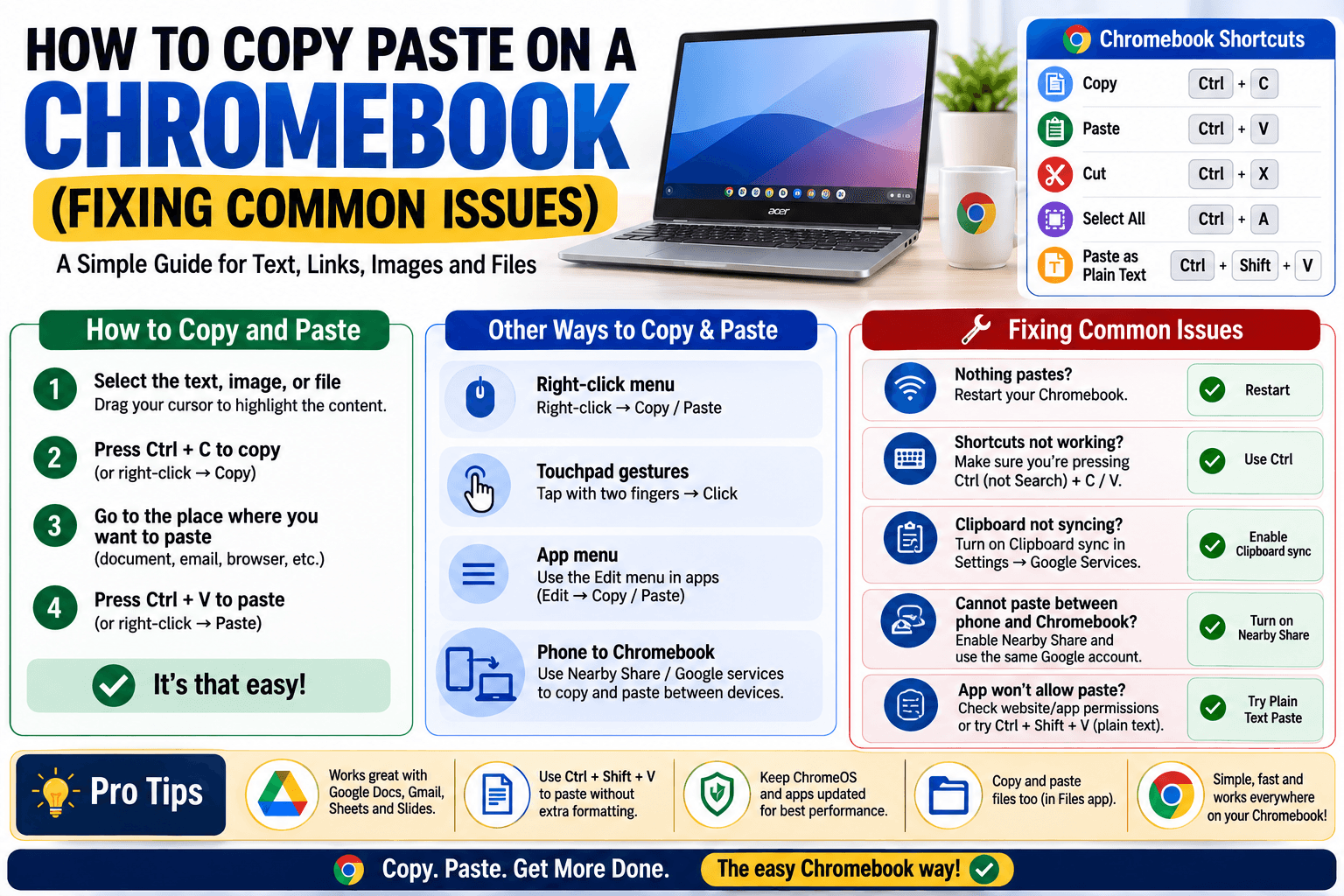
Chromebooks are common in classrooms and budget setups precisely because they are simple — but that simplicity occasionally hides small differences from a regular Windows or Mac experience. Copy and paste is one of them: mostly identical, with a few Chromebook-specific quirks that trip people up, especially students and anyone new to ChromeOS.
The basics: copy and paste on a Chromebook
- Copy: select the text, then press Ctrl + C.
- Cut: select the text, then press Ctrl + X.
- Paste: click where you want the text, then press Ctrl + V.
- Paste without formatting: Ctrl + Shift + V, useful when pasting from a webpage into a document and the original styling is not wanted.
If you are coming from Windows, this will feel immediately familiar, since ChromeOS deliberately mirrors standard PC shortcuts rather than inventing its own.
Common Chromebook copy-paste problems, and the actual fix
"Ctrl + V pastes nothing"
This almost always means the copy did not register in the first place. Try the copy step again and confirm the text is actually highlighted (not just clicked on) before pressing Ctrl + C — Chromebooks are more strict than some devices about requiring an active selection.
Touchscreen Chromebooks: copying without a keyboard shortcut
On touchscreen models, tap and hold on text to bring up a selection handle, drag to select the range you want, then tap "Copy" in the popup menu that appears — the same gesture pattern as a phone or tablet, rather than the keyboard shortcut.
Copying between a Chromebook and a phone
Chromebooks do not share a clipboard with a phone by default, even an Android phone signed into the same Google account — Chrome's clipboard sync covers some browser-based content but is inconsistent for general text. A browser-based tool like CopyPaster works more reliably here: open it on both the Chromebook and the phone while on the same Wi-Fi, and text pasted on one appears on the other instantly, regardless of what accounts either device is signed into.
Copying files, not just text
To copy a file rather than text, use the Files app: select the file, press Ctrl + C, navigate to the destination folder, and press Ctrl + V — the same shortcut pattern applies to files as it does to text.
For students and classroom use specifically
Managed school Chromebooks sometimes have clipboard access restricted by district policy, particularly for pasting between certain approved apps and unapproved ones. If copy-paste is not working and the steps above do not resolve it, this is worth checking with a teacher or IT administrator before assuming something is broken on the device itself.
Tip: if you need to move something from a Chromebook to a completely different type of device — a personal phone, a home computer — a browser-based tool avoids any account or policy restriction tied to the school's managed Google Workspace account, since it works independently of any account sign-in.
The bottom line
Chromebook copy-paste works almost exactly like Windows, with the main differences showing up around touchscreens, cross-device syncing, and occasionally school-managed restrictions. Once you know where those specific quirks are, it stops being any more complicated than any other device.
Frequently Asked Questions
QHow do I copy and paste on a Chromebook?
Select the text and press Ctrl + C to copy, then click the destination and press Ctrl + V to paste, the same shortcut pattern used on Windows.
QWhy does copy paste not work on my Chromebook?
This is usually because the text was not actually selected before pressing Ctrl + C. Confirm the text is highlighted, then try copying again.
QHow do I copy text from my Chromebook to my phone?
Chromebooks do not reliably share a clipboard with a phone by default. Use a browser-based tool like CopyPaster on both devices over the same Wi-Fi for reliable syncing.
Related articles

How to Copy Paste on Linux (Complete Guide)
Linux quietly runs two separate clipboards at once. Understanding both explains most copy-paste confusion, plus how to sync with other operating systems.
Read article
How to Transfer Contacts Between Phones Without an App
Moving to a new phone does not require a third-party transfer app. Here is how to move contacts using built-in sync or a quick vCard file export.
Read article
How to Send a Voice Memo From Phone to Computer
Voice memos are locked inside their app until you export them. Here is how to move a recording from your phone to your computer quickly once exported.
Read article