
How to Move Files Between Two Computers Without a USB Drive
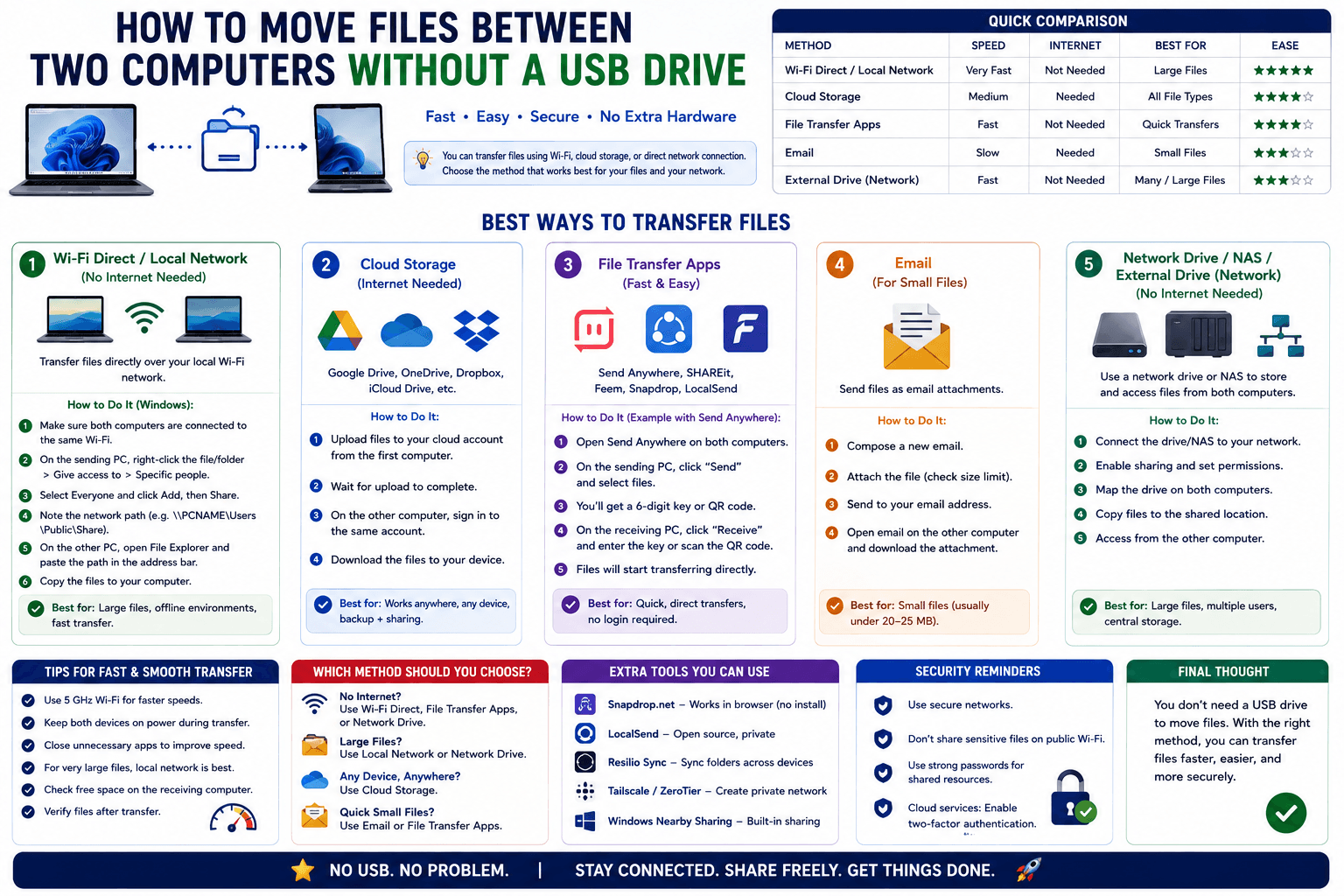
Two computers sitting right next to each other on the same desk, and moving a file between them still somehow requires finding a USB drive, plugging it into one machine, unplugging it, and plugging it into the other. Here is how to skip the USB drive entirely when both computers are this close together.
Why a USB drive feels like the default
It is the most universally compatible option — works regardless of operating system, network setup, or software installed. But for two computers already sitting on the same desk, almost certainly on the same network, it is solving a problem that does not need to exist.
Option 1: A browser-based transfer over your shared network
If both computers are connected to the same Wi-Fi or the same wired network, a tool like CopyPaster moves files between them directly, no physical drive required.
Step by step
- Confirm both computers are on the same network (Wi-Fi or Ethernet, as long as it is the same network).
- Open CopyPaster in a browser on both.
- Upload the file through the Files tab on one computer.
- Download it on the other — done, typically in seconds for everyday file sizes.
Option 2: A shared network folder
Setting up a shared folder (built into both Windows and Mac) lets you drop a file on one computer and access it directly from the other going forward, without repeating a transfer step each time. This is the better choice if you move files between the same two machines regularly, since the setup only needs to happen once.
Option 3: A direct Ethernet or Thunderbolt cable connection
For very large files — video projects, large datasets — a direct cable connection between the two machines (where supported) transfers faster than Wi-Fi, since it avoids network overhead entirely. This requires slightly more setup than the options above, but is worth it for genuinely large, repeated transfers.
Which option to use
- A one-off file, right now — a browser-based tool, fastest to set up with zero ongoing configuration.
- Frequent transfers between the same two machines — a shared network folder, set up once.
- Very large files, repeatedly — a direct cable connection, if your machines support it.
Tip: if the two computers are on different networks despite being physically close — for example, one on Wi-Fi and one plugged into Ethernet on a separate subnet — a browser-based room may not connect them automatically; check that both machines are genuinely on the same network before troubleshooting further.
The bottom line
Two computers on the same desk are almost always already on the same network, which makes a USB drive an unnecessary extra step for most everyday transfers. A browser-based tool gets the file across just as fast, without ever leaving your seat.
Frequently Asked Questions
QHow do I transfer files between two computers without a USB drive?
If both computers are on the same network, use a browser-based tool like CopyPaster to upload a file on one and download it on the other directly.
QWhat is the best option for frequent file transfers between the same two computers?
Setting up a shared network folder is more efficient for repeated transfers, since it only needs to be configured once.
QIs a direct cable connection faster than Wi-Fi for large files?
Yes, a direct Ethernet or Thunderbolt connection avoids network overhead and is faster for very large files transferred repeatedly.
Related articles

How to Copy Paste on Linux (Complete Guide)
Linux quietly runs two separate clipboards at once. Understanding both explains most copy-paste confusion, plus how to sync with other operating systems.
Read article
How to Transfer Contacts Between Phones Without an App
Moving to a new phone does not require a third-party transfer app. Here is how to move contacts using built-in sync or a quick vCard file export.
Read article
How to Send a Voice Memo From Phone to Computer
Voice memos are locked inside their app until you export them. Here is how to move a recording from your phone to your computer quickly once exported.
Read article