
How to Paste Text Without Formatting (Plain Text Paste Explained)
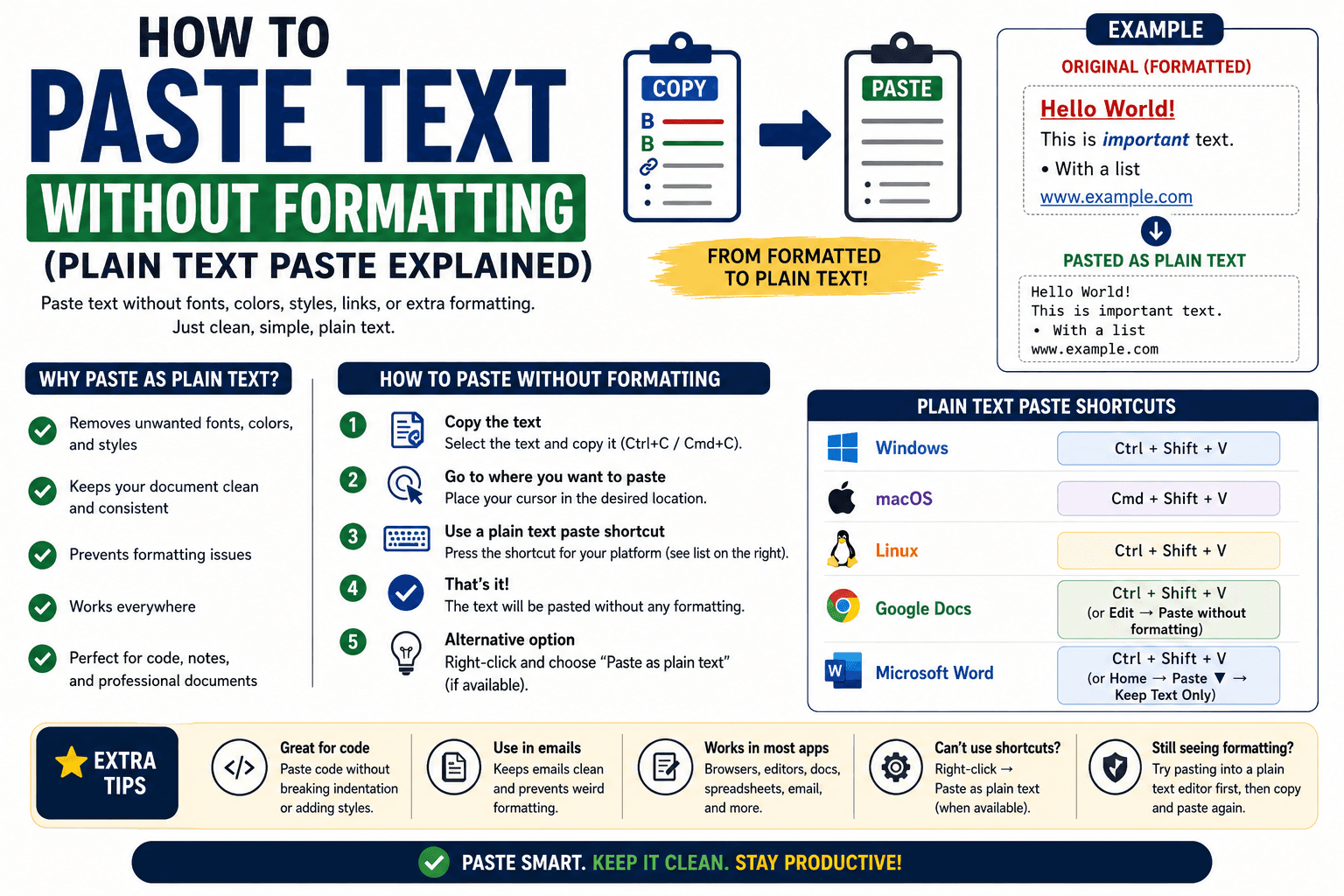
You copy a paragraph from a website or a Word document, paste it somewhere else, and suddenly the font is wrong, there is a random blue hyperlink color, or the spacing has gone strange. This is one of the most common small annoyances in everyday computer use, and it has a name: rich text formatting is coming along for the ride when all you wanted was the words. Here is what is actually happening and how to paste as plain text every time.
Why pasted text sometimes looks wrong
When you copy something from a webpage, an email, or a document, your clipboard usually stores more than just the letters. It also stores formatting metadata — font, size, color, links, spacing — bundled in what is called "rich text." Paste that into a different application, and it tries to recreate all of that formatting, which often clashes badly with wherever you pasted it.
Plain text strips all of that away and keeps only the actual characters. It looks boring, but it is exactly what you want any time formatting is not the point — code, notes, form fields, or text you are about to reformat yourself anyway.
How to paste as plain text on your device
Windows
Use Ctrl + Shift + V in most applications, including Google Docs, Slack, and many browsers. If that shortcut is not supported, paste normally with Ctrl + V and then use "Clear Formatting," often available under the Format menu or as Ctrl + Space in some apps.
Mac
Use Cmd + Shift + V in most apps that support it. In apps without a dedicated shortcut, paste normally and use Edit → "Paste and Match Style," which achieves the same result.
Browser-based tools
Many web apps, including Google Docs and most rich text editors, support Ctrl/Cmd + Shift + V directly. If a specific site does not, pasting into a plain text field first (like a search bar or a basic text editor) and copying it again from there works as a manual workaround.
The easiest workaround: paste through a plain text tool first
If you regularly deal with formatting following you around, the simplest fix is pasting through a plain text intermediary before it reaches its final destination. CopyPaster's text tab works well for this — paste your formatted text in, and what lands on the other end (or when you copy it back out) is stripped of the original styling, since the tool only ever stores plain text to begin with.
Tip: this doubles as a cross-device trick — paste formatted text on your phone, strip the formatting by routing it through CopyPaster, and copy the clean version straight onto your computer.
When you actually want to keep formatting
Not every situation calls for plain text. If you are copying a formatted table, a styled document section, or something where the layout matters, a normal paste (or "Paste and Preserve Formatting," where available) is the right call. Plain text is for the moments when formatting is actively getting in your way, not a rule to apply everywhere.
The bottom line
Formatting followed your text because rich text formatting travels with the clipboard by default, not because anything went wrong. A quick keyboard shortcut, or routing text through a plain text tool, strips it out in seconds whenever it is not welcome.
Frequently Asked Questions
QWhat is the shortcut to paste as plain text?
On Windows, use Ctrl + Shift + V. On Mac, use Cmd + Shift + V. If an app does not support the shortcut, paste normally and use a Clear Formatting or Paste and Match Style option instead.
QWhy does pasted text sometimes look different from the source?
Copied text often carries rich text formatting metadata like font, color, and spacing along with it. Pasting as plain text strips that metadata and keeps only the characters.
QHow can I strip formatting if my app has no plain text shortcut?
Paste the text into a plain text tool, such as a basic text editor or a browser-based clipboard tool like CopyPaster, then copy it again from there before pasting it into its final destination.
Related articles

How to Copy Paste on Linux (Complete Guide)
Linux quietly runs two separate clipboards at once. Understanding both explains most copy-paste confusion, plus how to sync with other operating systems.
Read article
How to Transfer Contacts Between Phones Without an App
Moving to a new phone does not require a third-party transfer app. Here is how to move contacts using built-in sync or a quick vCard file export.
Read article
How to Send a Voice Memo From Phone to Computer
Voice memos are locked inside their app until you export them. Here is how to move a recording from your phone to your computer quickly once exported.
Read article