
How to Send a Link From Your Phone to Your Computer Instantly
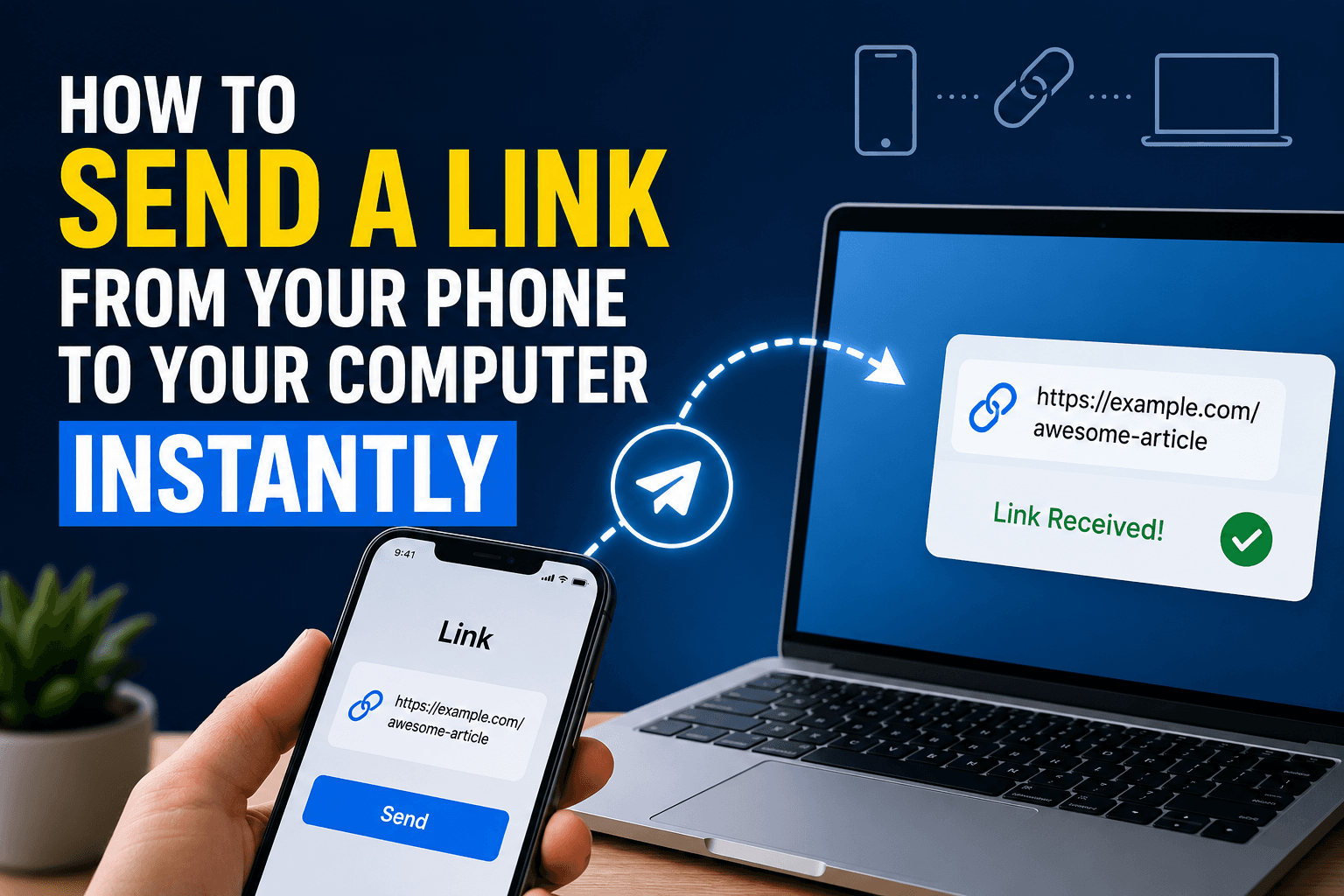
Someone needs a link right now — a Zoom invite, a document, a product page — and it is sitting on your phone while they are looking at a laptop screen. Texting it to yourself, opening Slack just to paste one URL, or emailing it across accounts all work, but they all involve more steps than the task deserves. Here is the fastest way to get a link from your phone to your computer in the time it takes to read this sentence.
Why the "usual" methods are slower than they feel
Texting a link to yourself means opening your messages app, finding your own thread (or a "notes to self" contact you set up once), pasting, sending, then switching to your computer to open the same messages app or wait for a notification. Emailing it is the same shape with an extra step: composing, sending, then checking an inbox that is probably full of things you do not want to look at right now.
Both work. Neither is actually fast — they just feel familiar, which is not the same thing.
The one-tab method: paste on one device, see it on the other
CopyPaster treats your phone and your computer as if they were already the same device, as long as they are on the same network. Copy the link on your phone, paste it into the shared text box, and it appears on your computer's screen instantly — no send button, no notification to wait for, no separate app to open.
Step by step
- Make sure your phone and computer are connected to the same Wi-Fi.
- Open CopyPaster in a browser tab on both devices.
- Copy the link on your phone.
- Paste it into the Text tab on CopyPaster.
- It shows up on your computer's screen in real time — click to copy, or click straight into the address bar.
There is no refresh needed and no message thread to scroll through afterward looking for the link you just sent.
Where this saves the most time
- Opening a meeting link on your laptop that arrived on your phone.
- Moving a product page, article, or reference link over while you are working at a desk.
- Sharing a link with someone else on the same Wi-Fi — a coworker, a family member — without needing their phone number or email.
- Pulling up something from your phone's browser history onto a bigger screen for a closer look.
Tip: this works both directions. Paste something on your computer and it shows up on your phone just as fast — useful for grabbing a link to send while you are away from your desk.
Getting the timing right
- Keep both tabs open. Since the sync is live, leaving the CopyPaster tab open on both devices means the link appears the instant you paste it, with nothing to refresh.
- Same network, every time. A phone on cellular data will not land in the same room as a computer on Wi-Fi — double check your connection if the link does not show up.
- Clear it after long sessions. Rooms reset automatically, but clearing manually when you are done keeps things tidy if you are switching between several links in a row.
When email or a message is still the right call
If the other person is not on the same network — a client in another city, a friend across town — a text message or email is still the correct tool, since CopyPaster's real-time sync is built around shared local networks, not distant devices. Use it for the same-network, same-moment handoff; use messaging apps for anything that needs to travel further.
The bottom line
A link does not need a whole conversation thread built around it just to move from your phone to your computer. Open the same tab on both devices, paste, and it is there — often before you would have finished typing a text message to yourself.
Frequently Asked Questions
QHow do I send a link from my phone to my computer without texting myself?
Open a shared browser tool like CopyPaster on both devices while on the same Wi-Fi, then paste the link on one device to see it appear instantly on the other.
QDoes this work without installing an app?
Yes, it works entirely inside the browser on both devices with nothing to install.
QCan I send a link back from my computer to my phone the same way?
Yes, the sync works in both directions, so pasting on your computer sends it to your phone just as quickly.
Related articles

How to Copy Paste on Linux (Complete Guide)
Linux quietly runs two separate clipboards at once. Understanding both explains most copy-paste confusion, plus how to sync with other operating systems.
Read article
How to Transfer Contacts Between Phones Without an App
Moving to a new phone does not require a third-party transfer app. Here is how to move contacts using built-in sync or a quick vCard file export.
Read article
How to Send a Voice Memo From Phone to Computer
Voice memos are locked inside their app until you export them. Here is how to move a recording from your phone to your computer quickly once exported.
Read article