
How to Send a ZIP File or Folder Between Devices
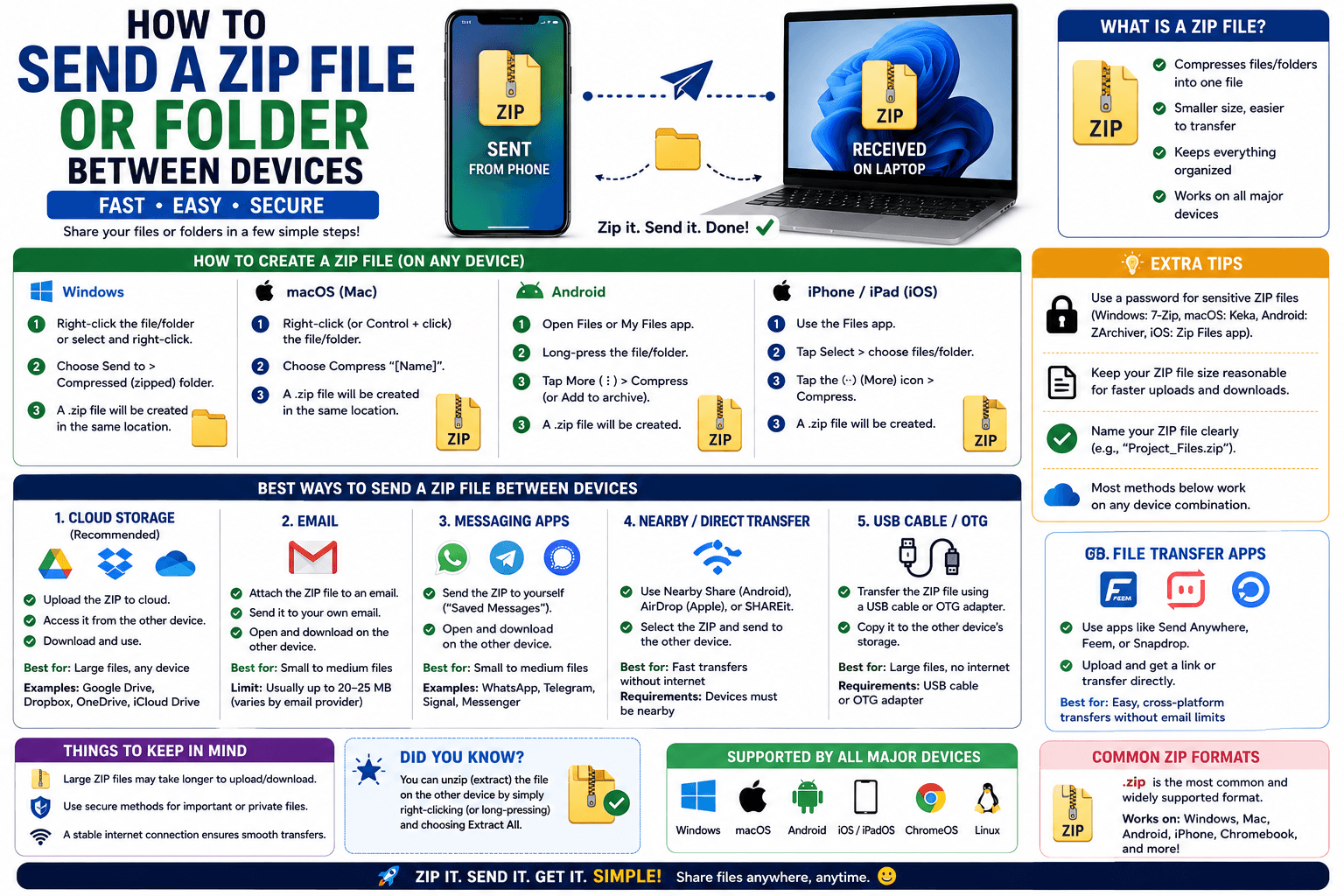
Most quick device-to-device transfer tools are built around a single file at a time — pick one photo, send one document. The moment you need to move an entire folder, or several files bundled together, it is worth knowing whether to zip first or just send them as a batch.
Do you actually need to zip first?
Not always. If you are sending a handful of files together, most file-sharing tools, including CopyPaster, let you select and upload multiple files at once without needing to compress them into a single archive first. Zipping is really only necessary when you specifically want everything to arrive and stay bundled as one file, such as an entire project folder with a specific structure you don't want flattened.
When to zip a folder before sending
- You need the folder structure preserved — subfolders, file organization — rather than a flat list of individual files on the other end.
- You are sending a large number of small files — zipping bundles them into one transfer instead of many individual uploads.
- You want a single, easy-to-verify file — one zip is simpler to confirm arrived correctly than fifty individual files.
How to zip a folder
Windows
Right-click the folder, choose "Send to," then "Compressed (zipped) folder."
Mac
Right-click the folder and choose "Compress," which creates a .zip file in the same location.
Sending the zip file with CopyPaster
- Zip the folder using the steps above.
- Connect both devices to the same Wi-Fi network.
- Open CopyPaster in a browser on both.
- Upload the .zip file through the Files tab.
- Download it on the other device, then unzip to restore the original folder structure.
When to skip zipping and just send files directly
For a small handful of files where structure doesn't matter — a few photos, a couple of documents — uploading them individually through the Files tab is faster than the extra zip-then-unzip round trip, since most transfer tools handle multiple files in a single upload just fine.
Tip: very large zip files can take a while to both create and upload — for genuinely large folders, check whether the total size fits comfortably within what your transfer method handles well before zipping everything into one file.
The bottom line
Zip a folder before sending only when preserving its structure or bundling many small files actually matters — for most everyday transfers, sending files directly without the extra compression step is simpler and just as fast.
Frequently Asked Questions
QDo I need to zip a folder before sending it between devices?
Only if you need the folder structure preserved or are sending many small files. For a handful of files, most transfer tools let you upload them directly without zipping.
QHow do I zip a folder on Windows?
Right-click the folder, choose Send to, then Compressed (zipped) folder.
QHow do I zip a folder on Mac?
Right-click the folder and choose Compress, which creates a .zip file in the same location.
Related articles

How to Copy Paste on Linux (Complete Guide)
Linux quietly runs two separate clipboards at once. Understanding both explains most copy-paste confusion, plus how to sync with other operating systems.
Read article
How to Transfer Contacts Between Phones Without an App
Moving to a new phone does not require a third-party transfer app. Here is how to move contacts using built-in sync or a quick vCard file export.
Read article
How to Send a Voice Memo From Phone to Computer
Voice memos are locked inside their app until you export them. Here is how to move a recording from your phone to your computer quickly once exported.
Read article