
How to Share a QR Code Between Devices for Instant File Transfer
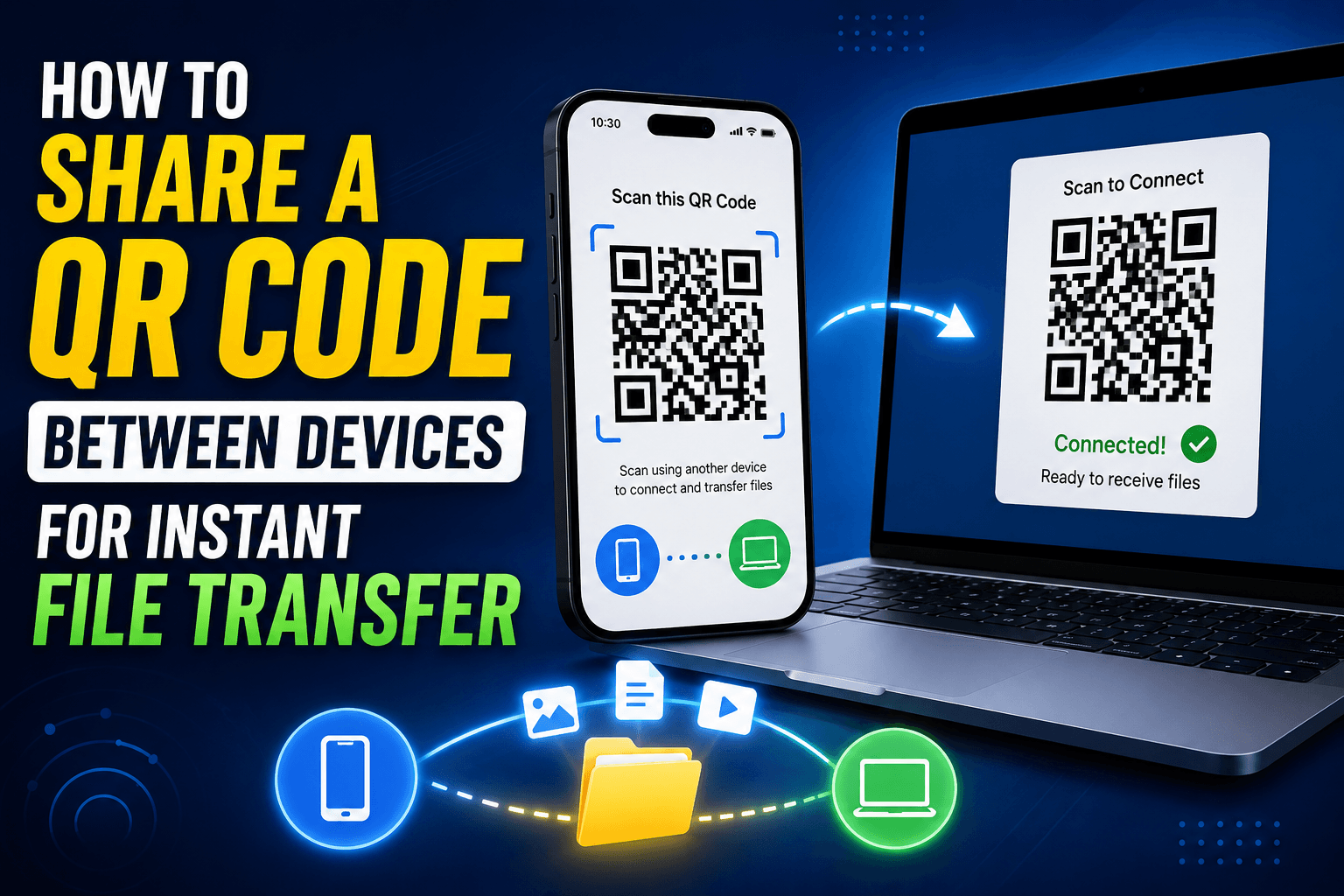
You have seen restaurants use a QR code for the menu and payment terminals use one to confirm a transaction — the same idea works just as well for moving a file between your own devices. No cable, no Bluetooth pairing, no typing a URL character by character on a phone keyboard. Here is how to use a QR code to send files between devices, and when it beats the alternatives.
Why QR codes are a genuinely good fit for device transfers
A QR code solves one specific, annoying problem: typing a web address or a room code accurately on a small screen. Most file-sharing tools that use temporary rooms rely on some kind of shared identifier, and typing that identifier by hand is where mistakes creep in — a missed character, a mistyped code, a session that does not match.
A camera pointed at a QR code skips all of that. There is nothing to type and nothing to get wrong.
How it works with CopyPaster
Open CopyPaster on your computer and it generates a room automatically, tied to your network's public IP. Instead of typing that same address into your phone's browser, scan the code shown on your screen, and your phone joins the exact same room instantly.
Step by step
- Open CopyPaster on your computer.
- Look for the QR code shown alongside the room details.
- Open your phone's camera (or QR scanner) and point it at the screen.
- Tap the link that pops up — it opens CopyPaster on your phone, already in the same room.
- Drag in a file or paste text, and it appears on your computer immediately.
The entire setup, from opening the camera to seeing the file appear, usually takes under ten seconds.
Good use cases for the QR method
- Sending a batch of photos from your phone to your computer for editing.
- Sharing a file with someone else in the room — a meeting, a classroom, a shared desk — without asking for their email address.
- Onboarding a new device to your usual sharing setup without re-typing anything.
- Any moment where typing accurately on a phone keyboard is more annoying than the transfer itself.
Tip: if you are sharing the QR code with a group, remember everyone who scans it and is on the same network joins the same room. Keep group scans to non-sensitive text and files.
Making sure the scan goes smoothly
- Good lighting helps. A dim room or a glare-heavy screen can make a QR code harder for a phone camera to lock onto — tilt the screen slightly if the scan is not registering.
- Same Wi-Fi still applies. The QR code encodes the room address, but the room itself is still tied to your network's public IP — a phone on mobile data will not join, even after scanning.
- Refresh if the code expires. Rooms are temporary by design, so a code left on screen for a long time may need a refresh before scanning.
When a QR code is not the right tool
If you are sending something to a person who is not physically present to scan a screen, a QR code obviously will not help — send a link or use a private note instead. And for very large files, a direct cable transfer will still outperform any browser-based method, QR-assisted or not.
The bottom line
A QR code turns "type this address correctly on a tiny keyboard" into "point your camera and tap once." For quick file and text transfers between your own devices, or with someone standing next to you, it is one of the fastest on-ramps available — no app store visit required.
Frequently Asked Questions
QHow do I transfer files using a QR code?
Open the file-sharing tool on your computer, scan the QR code it displays with your phone camera, and your phone joins the same room automatically so you can send files back and forth.
QDo I need an app to scan the QR code?
No, most phone cameras can scan QR codes natively. Tapping the link that appears opens the tool directly in your browser.
QDoes the QR code work over mobile data?
No, the room it connects to is tied to your Wi-Fi network's public IP, so both devices need to be on the same Wi-Fi for the scan to work.
Related articles

How to Copy Paste on Linux (Complete Guide)
Linux quietly runs two separate clipboards at once. Understanding both explains most copy-paste confusion, plus how to sync with other operating systems.
Read article
How to Transfer Contacts Between Phones Without an App
Moving to a new phone does not require a third-party transfer app. Here is how to move contacts using built-in sync or a quick vCard file export.
Read article
How to Send a Voice Memo From Phone to Computer
Voice memos are locked inside their app until you export them. Here is how to move a recording from your phone to your computer quickly once exported.
Read article